 BrandStills
 AI product photo generators change label
Do AI product photo generators change your label or logo?
They can. Generators working from a text prompt alone invent the label, and even the current editing models in ChatGPT and Gemini, which keep short, clear text far better when you upload the real photo, still drift on small print, curved labels, fine logos and colours. Product photo tools narrow the risk by reading the label first, locking it into every render and checking the result, but every image should still be proofread before publishing.
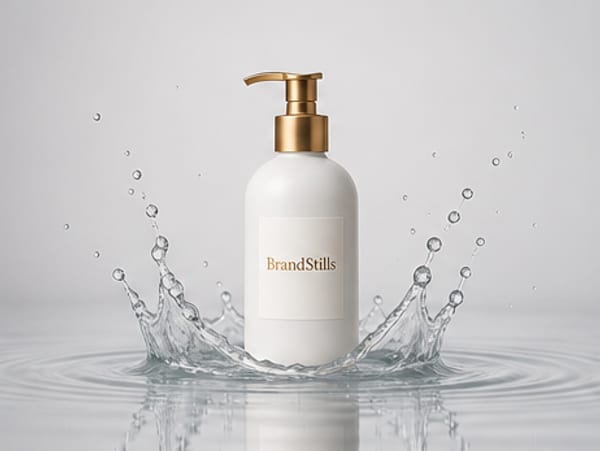
They can, and the label is usually the first casualty. Ask an image generator for a new background and you may get back a bottle whose brand name has grown an extra letter, an ingredient list of convincing gibberish and a logo that is almost, but not quite, yours. Colours drift too: a sage green wrapper comes back mint, a navy cap comes back black.
The current editing models from OpenAI and Google are much better at this than older ones, as long as you upload a clear photo rather than describing the product. A short brand name in large type often survives untouched. Small print, curved surfaces, fine logo marks and shots with several products are where they still slip.
Why it happens
Image models rebuild the entire image, foreground included. They do not know that the label is sacred and the background is disposable; they know what labels tend to look like, and they repaint yours from that general idea. Small type, curved surfaces and fine logo marks give the model the least information to work with, so they degrade the most. Prompting “keep the label exactly the same” helps less than people hope, because the instruction is fighting how the model works.
How product photo tools differ
Product photography tools run on the same kinds of models, so they cannot make the risk disappear; what they can do is narrow it. BrandStills renders from two or three phone photos of the real item, reads the label text, logo, colours and proportions when you save the product, and writes them into every render as locks. After each render, a vision check compares the result with your photos and flags anything that drifted, with a one-tap fix. The scene changes while the product does not: the same jar can sit on a botanical pedestal or in a cafe scene with its wording intact. If a render ever misses, edits build on the previous image in a chat-style thread, so you correct rather than start over. For how this compares with doing the same job yourself in a chatbot, see BrandStills vs ChatGPT and Gemini.
Trust, then verify
Whatever tool you use, proofread every render against the physical product before it goes near a listing or an ad. Read the label, check the closure, compare colours in daylight. A wrong label is not a cosmetic flaw; it is a photo of a product you do not sell. The honest workflow is photograph the real product, render, compare, publish.
The fastest way to know whether a tool respects your label is to test it on your own packaging. BrandStills gives free credits on install for exactly that. Get the app or read how it works first.
Frequently asked questions
Why is text the first thing AI images get wrong?
Because image models paint pixels that look like text rather than writing words. Long or small print is where it collapses first, which is exactly what product labels are made of: ingredient lists, weights and fine brand marks.
How do I check a render before using it?
Put the render next to the physical product and read the label out loud, word by word, then compare the logo shape, the colours and the proportions. Anything a buyer could call different from the delivered item means the image should not be published.
Can I fix a garbled label in an editor instead?
Patching a flat label in Photoshop is possible but slow, and it fails on curved bottles, jars and foil where the type wraps and catches light. Starting from a tool that keeps the label is faster than repairing one that broke it.
Is BrandStills free?
BrandStills is free to install and includes starter credits. After that, you can subscribe for monthly credits or buy a one-time credit pack, no subscription required. Pack credits never expire. One credit makes one photo. Each edit creates a new photo, so it also uses one credit. Renders that fail do not use credits.
Related guides
You can make good product photos in ChatGPT or Gemini: upload clear photos of your product, describe the scene, and check the label carefully. BrandStills renders with current state-of-the-art image models, the same class of models behind the big assistants, but does the product photography work for you: it reads your label and proportions once, locks them into every render, checks each result against your photos, and keeps your products and dozens of ready-made scenes in one library. A chatbot suits one-off images; BrandStills suits a consistent set.
Can AI generate product photos of my actual product, not a lookalike?Yes, but only with tools that render from reference photos of your product rather than from a text description. Prompt-only generators invent a plausible lookalike with a garbled label; reference-locked tools such as BrandStills work from two or three phone photos and keep the label text, logo, colours and proportions, though every render should still be checked against the real product.
Can I use AI generated product photos on Amazon and Etsy?Yes, with a clear line: images that show your real, photographed product in a generated setting are broadly acceptable, while fully synthetic images of a product that was never photographed risk removal on both platforms, because Amazon and Etsy both require images to truthfully show the actual item. Policies keep evolving, so check each platform's current help pages before relying on any specific rule.
Last updated October 14, 2026.
Shoot once. Post all year.
Install BrandStills, add one product, and have your first studio photo before your coffee cools.
Free credits on install · Start in a minute